sync inventory between Wix stores: How to sync inventory between two Wix stores
Wholesale and retail, two regions, or drop-shipping from another shop. How to sync inventory between Wix stores in real time with Multi-Store Sync, matched by SKU and approved from both sides, and have new products copied across too.
Selling the same products in more than one Wix store means every sale in one store has to be subtracted in the other, by hand, before someone buys what is already gone. Multi-Store Sync for Wix does it automatically: when a product sells or stock is adjusted in any connected store, every other store updates in real time. It also copies products: add one to your primary store and it can be created in your connected stores, so you build your catalog once. Here is how to sync inventory between Wix stores with it.
How the connection works
- One primary store, and as many child stores as you need. The app is installed on each store, and a subscription is required for the primary store and each connected child store. The app has a 7-day free trial.
- Approved from both sides. Each connection is requested by one store and approved by the other, so nobody can attach to your store without you.
- Matched by SKU. The app syncs the products whose SKUs match between the shops. Products with unique SKUs in either shop are left alone.
- Two-way. Every sync runs both ways, so it does not matter which store makes the sale.
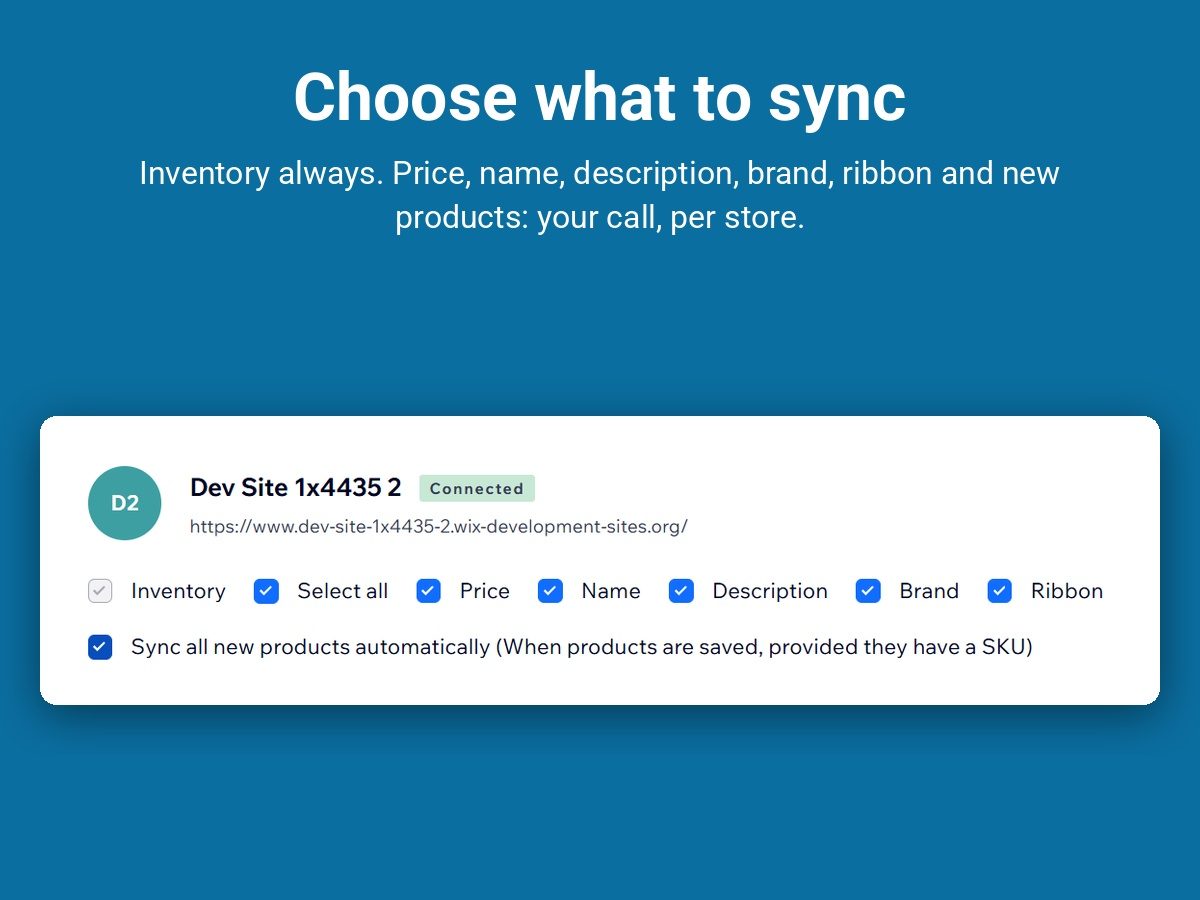
- New products copied across. Each connection can update existing products, copy new products, or both. Price, name, description, brand and ribbon each have their own toggle.
- Wix to Wix. The app connects Wix shops to other Wix shops only, not to Etsy or Amazon.
Set it up
- Give matching products the same SKU in every store. That is how the app knows which product is which.
- Install the app on the primary store from its listing, and answer the setup question: this store is the primary.
- Install it on each child store and choose secondary. Approve the connection on the secondary store; the primary store shows it as awaiting approval until you do.
- Choose what else stays in sync. Beyond stock, each connection has its own on/off toggle for price, name, description, brand and ribbon.
- Sync the whole catalog once. One click syncs your entire catalog at any time; use it to bring the stores level, then check a product in both.
The instructional video shows the connection being made.
What store owners say
"I run two separate sites, wholesale and retail. This app makes it very easy to keep track of stock." Deancalland, on the Wix App Market.
"Gives me so much peace of mind knowing I won't over sell on one of my sites." Birdiebeliefproject, on the same listing.
Copying products, step by step
Turning on product copying, choosing which fields follow the primary store, and what to check afterwards: How to copy products from one Wix store to another.