
multi-pack or pick-and-mix box on Wix: How to sell a multi-pack or pick-and-mix box on Wix
A 5-pack where each pair is a product you already sell, or a box of 12 where the buyer chooses the flavors. How to sell a multi-pack or pick-and-mix box on Wix with Attribute Wizard Pro, with stock taken from the single products.
A multi-pack is five products sold as one. A pick-and-mix box is twelve slots the buyer fills from a list. Both break on Wix when the box has its own stock count separate from the singles, because selling the box does not reduce the singles and the other way round. Attribute Wizard Pro for Wix sells a multi-pack or pick-and-mix box on Wix as one product whose options draw stock from the products you already sell, so a multi-pack works like a bundle.
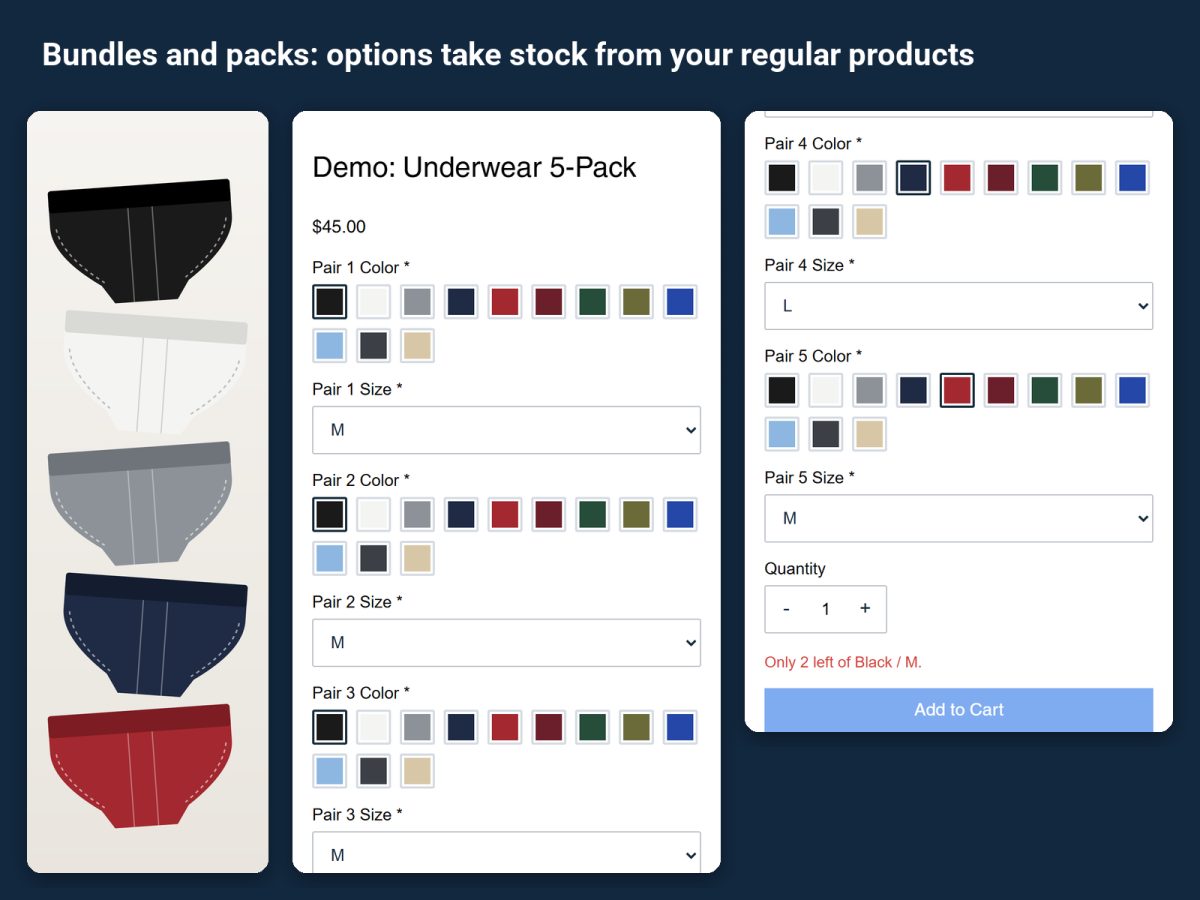
Multi-pack: each slot is an existing product
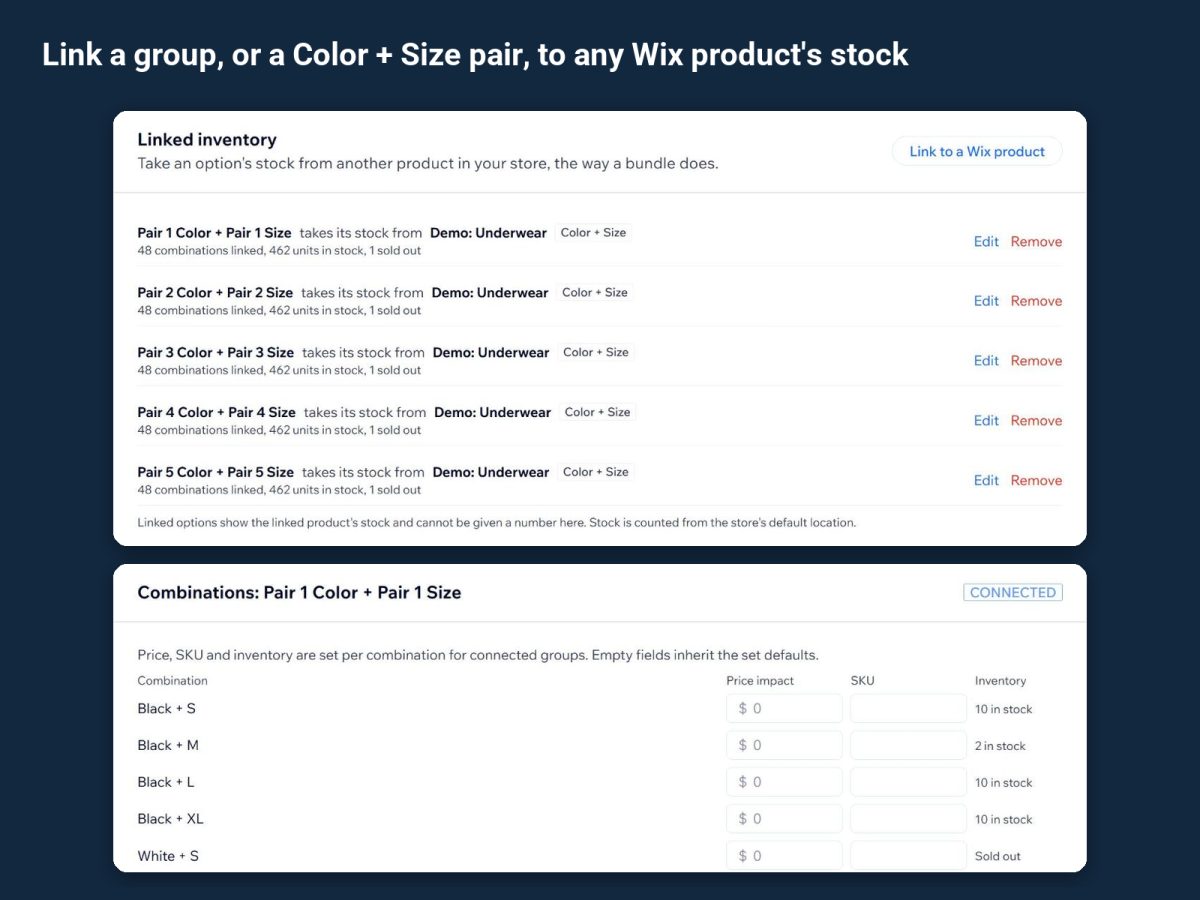
Link an option group, or a color and size pair, to any Wix product's stock. When the 5-pack sells, each pair chosen comes out of that product's inventory, and a pair that is sold out shows as sold out in the pack. One price for the pack, one line in the order with every choice listed.
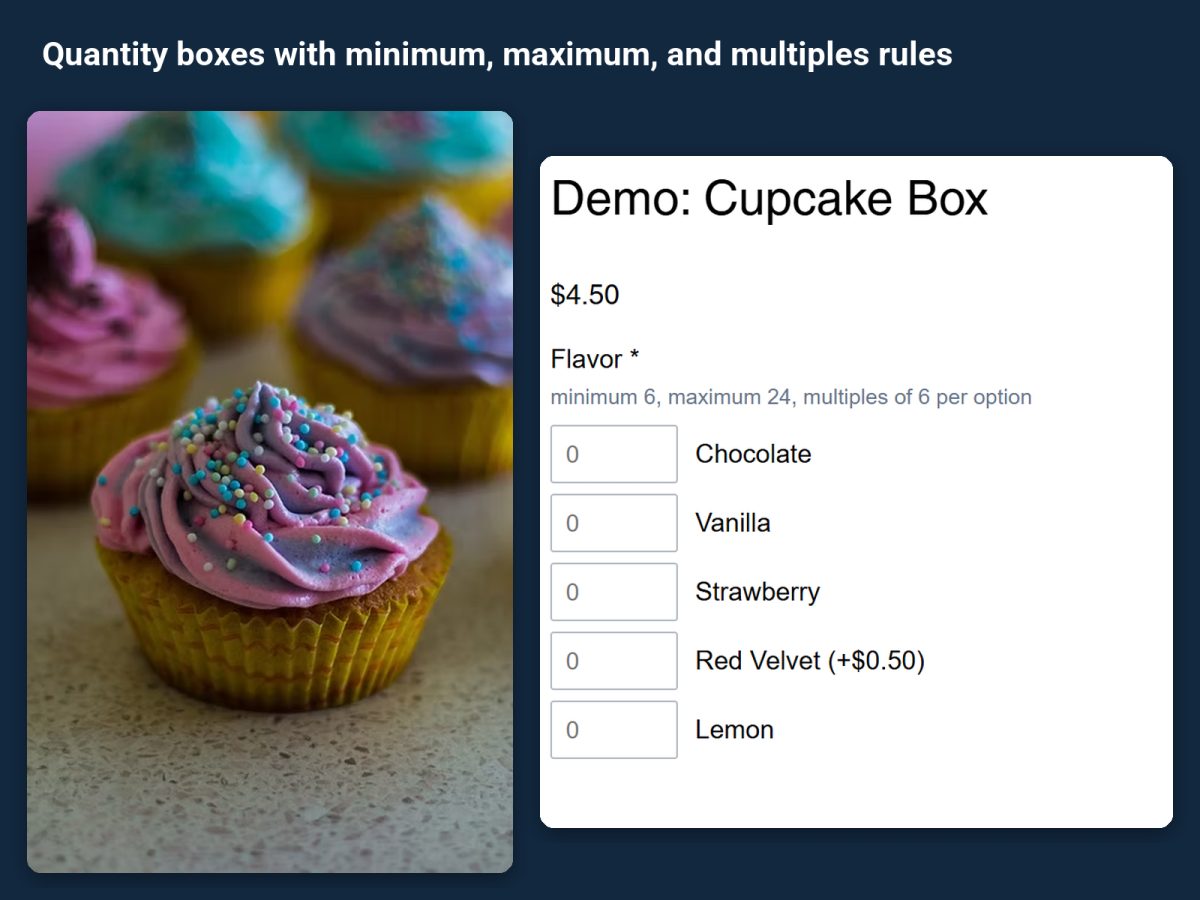
Pick-and-mix: quantity boxes with rules
For a box of cupcakes, chocolates or teas, give the buyer a quantity box per flavor. Quantity boxes come with minimum, maximum and multiples rules, so the box can require exactly 12, or at least 6 in multiples of 6. Each flavor can carry its own price for the ones that cost more.
Set it up
- Install the app from its listing. The underwear 5-pack and the cupcake box demo products are both finished examples.
- Create the box as a Wix product with the pack price.
- Add one group per slot (multi-pack) or one quantity box per flavor (pick-and-mix).
- Link each value to the single product it takes stock from, so the box and the singles share one inventory.
- Set the quantity rules for a pick-and-mix: minimum, maximum, multiples.
- Assign the set to the box and place a test order. Every slot follows the order to the cart, checkout, emails and the order view.
When the box has its own stock instead
If the pack is pre-packed and counted separately from the singles, you do not need shared stock, and Bundles may be the simpler fit; see How to create product bundles on Wix, under "When the products share stock instead", for the difference.
Related guides
How to take bulk orders by size and color in Wix uses the same quantity boxes in a two-way grid.