
product options as images in Wix: How to show product options as images in Wix
A fabric, a finish or a print is easier to pick from a picture than from a word in a dropdown. How to show product options as images in Wix with Attribute Wizard Pro: a picture or a color swatch per value, with its own price and stock.
"Walnut" means little in a dropdown and a lot as a photo of the grain. Wix product options can show a color swatch for a choice Wix knows as a variant, but a picture per value for every kind of option, on a product with many of them, needs Attribute Wizard Pro for Wix. It displays product options as images in Wix: every value in a group can be a picture or a color swatch, as well as a plain dropdown or quantity box.
What you can show
- A picture per value. A fabric sample, a frame corner, a print design, a font specimen. The shopper clicks the picture.
- A color swatch per value. For colors and finishes where a plain swatch is clearer than a photo.
- A picture for the group itself. The group heading can be an image too, so a chip icon heads the processor choices and a stick of memory heads the memory choices.
- Mixed groups on one product. Wood as pictures, finish as swatches, size as a dropdown, quantity boxes for packs. Each group has its own display type.
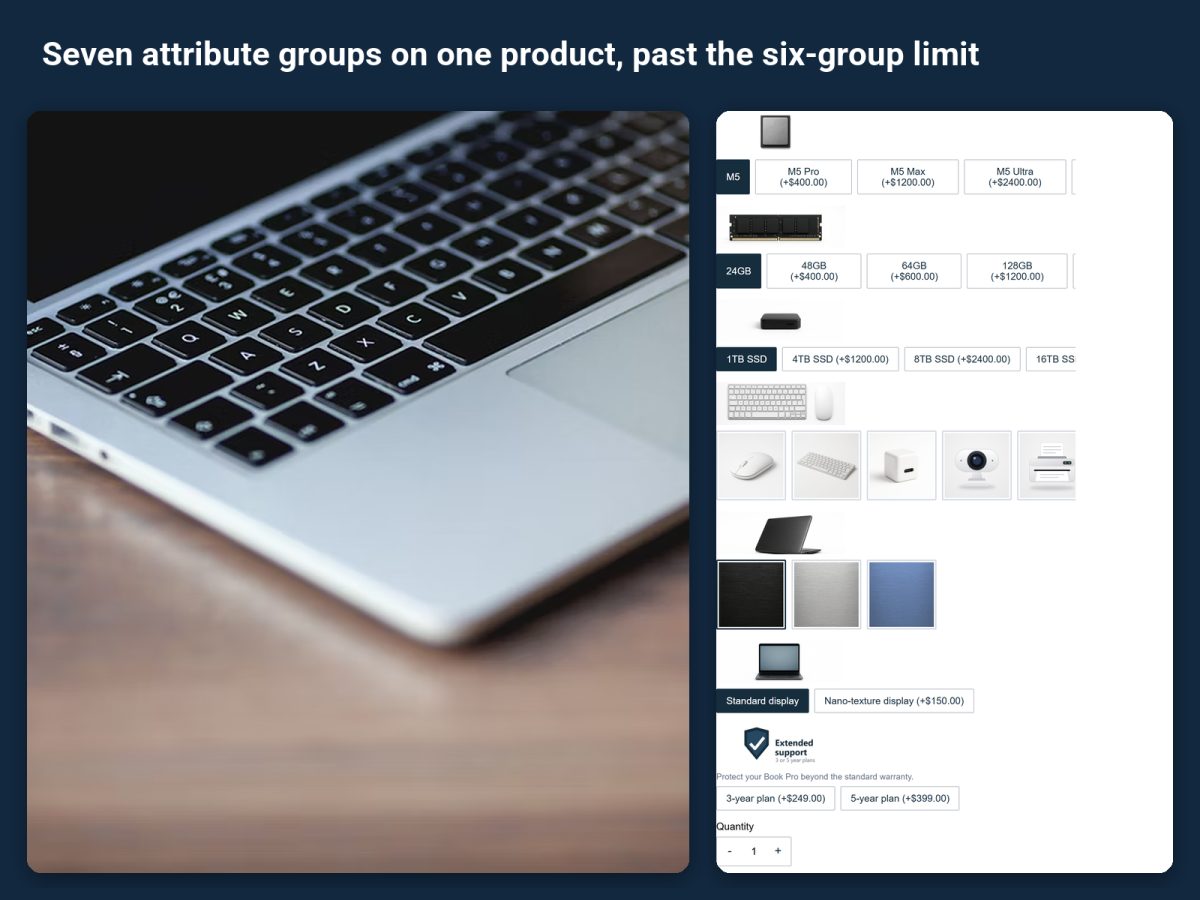
Every value, whatever its display, can carry its own price, SKU and tracked stock, with sold-out display and checkout protection so you never oversell. A sold-out fabric shows as sold out on its picture.
Set it up
- Install the app from its listing. Every input type is included on the free plan.
- Create the group and add one value per choice.
- Choose the display type for the group: images or swatches. Upload a picture on each value, or set its color.
- Add price and stock where values differ.
- Assign the set to the product and check the live page on a phone as well as a desktop; the pictures are what the shopper taps.
Every selection follows the order to the cart, checkout, emails and the order view, with the value's name, so fulfilment reads "Walnut" even though the shopper clicked a picture.
Go one step further
If the product photo itself should change as the shopper picks, that is a different feature, layered images: How to make the product image change with the options chosen in Wix.
Related guides
How to add custom product options to a Wix store covers every option type the app adds.